Your Stage Just Got Bigger: Stream to Volume.com From Your Phone
The studio. The tour bus. The hotel rooftop. Backstage before the show. Wherever inspiration hits, your audience can now hit play right alongside you.
We're making mobile streaming easier than ever on Volume.com. No laptop. No capture card. No rat's nest of cables. Just your phone, your face, and a global audience waiting for whatever you're about to do next.
Why This Matters
Streaming used to mean staying tethered to a desk. That worked fine if your content lived behind a microphone in a treated room. But most of the magic on Volume happens out in the world — soundchecks, backstage moments, acoustic sets in unexpected places, Q&As with fans after a show.
Mobile streaming closes that gap. You get:
Pro-grade RTMP streaming straight from your phone
Native chat overlay so you can read and react to your audience in real time
The same stream key, the same Volume.com page — your fans don't have to do anything different
Total location freedom — anywhere with a decent signal is now a stage
Here's how to get set up. It takes about five minutes.
Step 1: Install StreamCast PRO
Head to the iOS App Store or Google Play and download StreamCast PRO. Open it up, and when it asks for Camera and Microphone access, say yes to both. Without those permissions, the app can't capture anything.
💡 Tip: While you're in iOS Settings, also enable Background App Refresh for StreamCast PRO. It helps the app stay stable during longer sessions.
Step 2: Connect Your Stream
This is where you tell StreamCast PRO where to send your video — straight to your Volume.com page.
Open Settings → Connections
Tap the "+" in the top right to add a new stream
In the Name field, enter your artist or show name
In the URL field, paste the unique RTMP URL we provide you.
Tap Save in the upper right corner
🔑 Don't have your stream URL yet? Reach out to us at support@volume.com and we'll send it over. Each Volume.com artist has their own — keep yours private, the same way you'd treat a password.
Step 3: Dial In Your Video Settings
Good streams aren't just about what's on camera — they're about how it gets to your audience. Head to Settings → Video and match these configurations provided below.
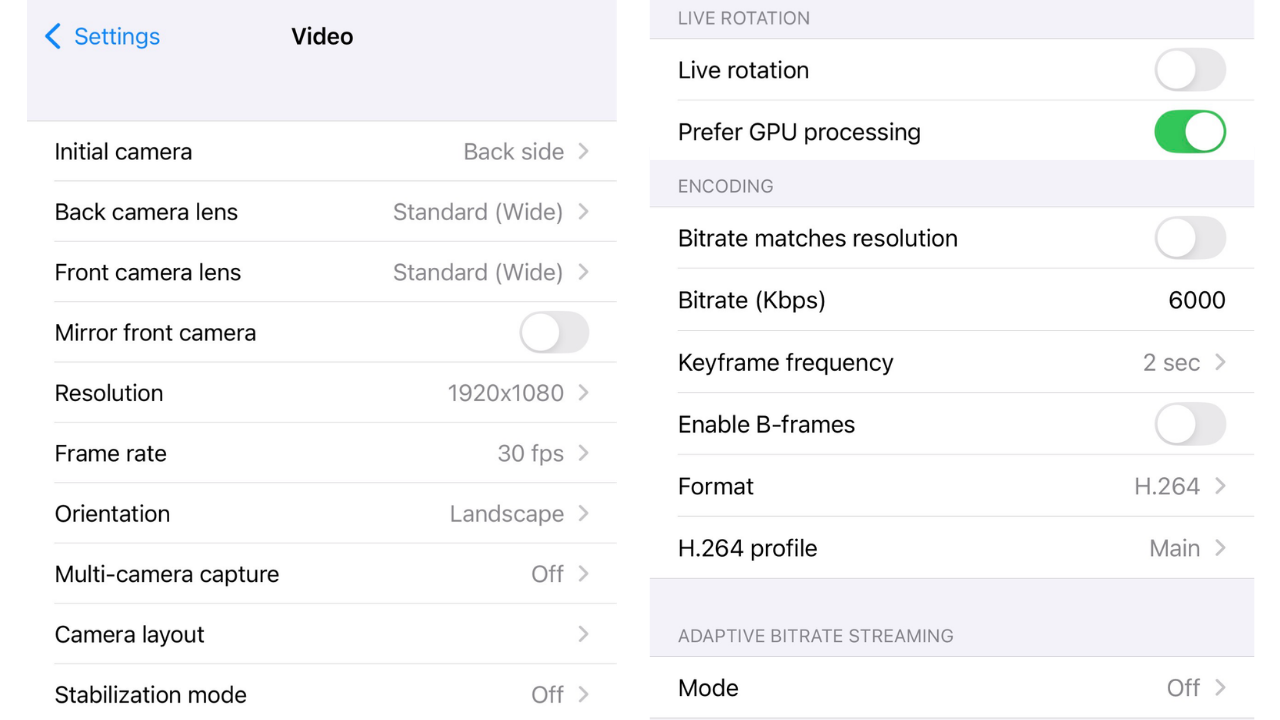
We've tuned these defaults for the best balance of quality and stability on mobile networks. If you're streaming over LTE or 5G instead of WiFi, these settings will keep your broadcast smooth without burning through bandwidth.
📶 Real talk: WiFi is your friend whenever possible. Mobile data works, but a stable connection is the difference between a clean broadcast and a buffering disaster.
Step 4: Add the Volume.com Chat Widget
This is the secret weapon. Your Volume.com chat lives on screen with you during the stream — so you can read messages, shout out fans, and interact in the moment.
Go to Settings → Overlays
Tap Web Widgets
Tap the "+" in the top right to add a new widget
Name it Volume Chat
In the URL field, paste your chat embed link (e.g https://volume.com/ablychat/room/embed/artistname/)
In the Custom CSS field, select URL and paste the same link again
Match the rest of the settings to the reference screenshot, then tap Add in the lower right corner
That's it — chat is now baked into your stream as a live overlay.
Step 5: Go Live
Almost there. Two final things:
Before you stream: Reach out to support@volume.com so we can flip the switch on your Volume.com page and make sure everything's ready on our end. A heads-up makes a huge difference.
When you're ready: Hit the orange stream button in the StreamCast PRO interface. You're live. To end the stream, tap the same button again.
⚡ Want auto-start enabled? Let us know when you email us. We can configure your account so your Volume.com page goes live automatically the moment you start broadcasting from the app — zero manual setup on game day. This is highly-recommended if you plan on mobile streaming often.
What's Next
Mobile streaming is just the start. We built Volume.com to be the home for live music and creator-driven content, and giving you the tools to broadcast from anywhere is a core part of that vision.
Need help getting your Volume.com artist page ready for mobile streams? Reach out to the team at support@volume.com and we'll get you dialed in.